OpenSSH Server
- OpenSSH server is the program that allows remote login using SSH.
- The server process is called
sshd. - It typically starts automatically at boot.
- Its main configuration file is:
/etc/ssh/sshd_config
What is an SSH key?
- SSH supports an authentication mechanism based on cryptographic keys, called public key authentication.
- An SSH key pair consists of:
- Public key
- Private key
Authorized keys
- One or more public keys can be configured on the server as authorized keys.
- These are stored in:
~/.ssh/authorized_keys(inside the user’s home directory on the server)
How authentication works
- The private key stays on the client machine.
- The public key is copied to the server.
- During login:
- The server checks whether the client can prove it owns the private key
- If it matches a public key in
authorized_keys, access is granted
- The private key is never sent over the network
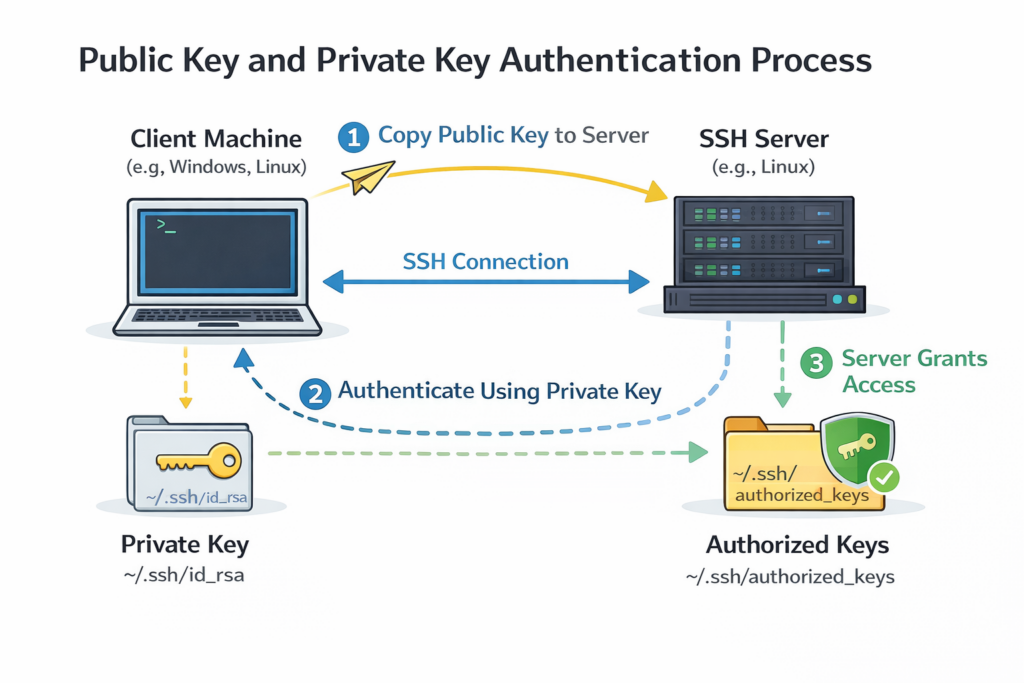
SSH key workflow (client → server)
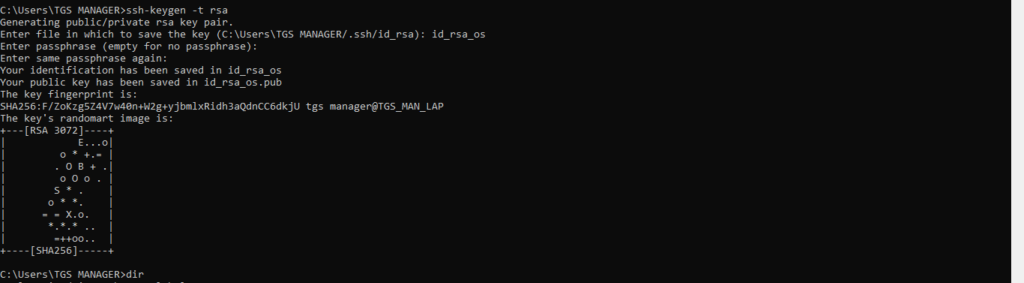
On client (Windows, Linux, macOS)
Generate a key pair:
ssh-keygen -t rsaThis creates two files in:
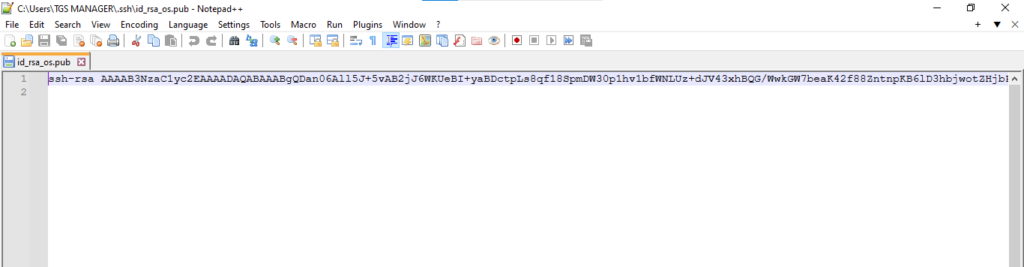
~/.ssh/id_rsa→ private keyid_rsa.pub→ public key
Client Machine Windows on CMD
On server (Ubuntu)
- Ensure OpenSSH server is installed:
sudo apt install openssh-server
- Make sure SSH service is running:
sudo systemctl start ssh
- Copy the public key contents into:
~/.ssh/authorized_keysServer Machine Ubuntu

SSH Connection Established
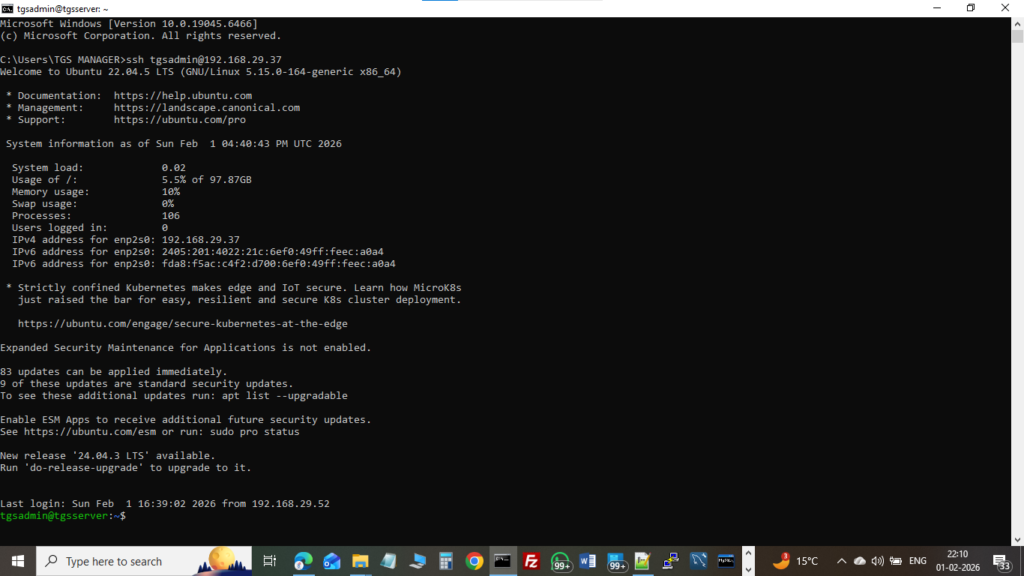
Connection Flow
[ Client (Windows / Linux) ]
   └── private key
        ↓ SSH connection
[ Network ]
        ↓
[ Linux Server (sshd) ]
   └── authorized_keys (public key)
If keys match → login succeeds without password
Key Points – Exam & Interview
sshd= SSH server daemon- SSH keys = public + private
- Public key → server (
authorized_keys) - Private key → client only
- More secure than passwords
- Config file:
/etc/ssh/sshd_config