Introduction
In-built Disk Management tool in Ubuntu is “Disks” & Disk Utility (Disks) is used to:
- Create partitions
- Delete partitions
- Resize partitions
- Format drives
- Mount and unmount volumes
- Manage all parts of a storage device
1) Storage Device
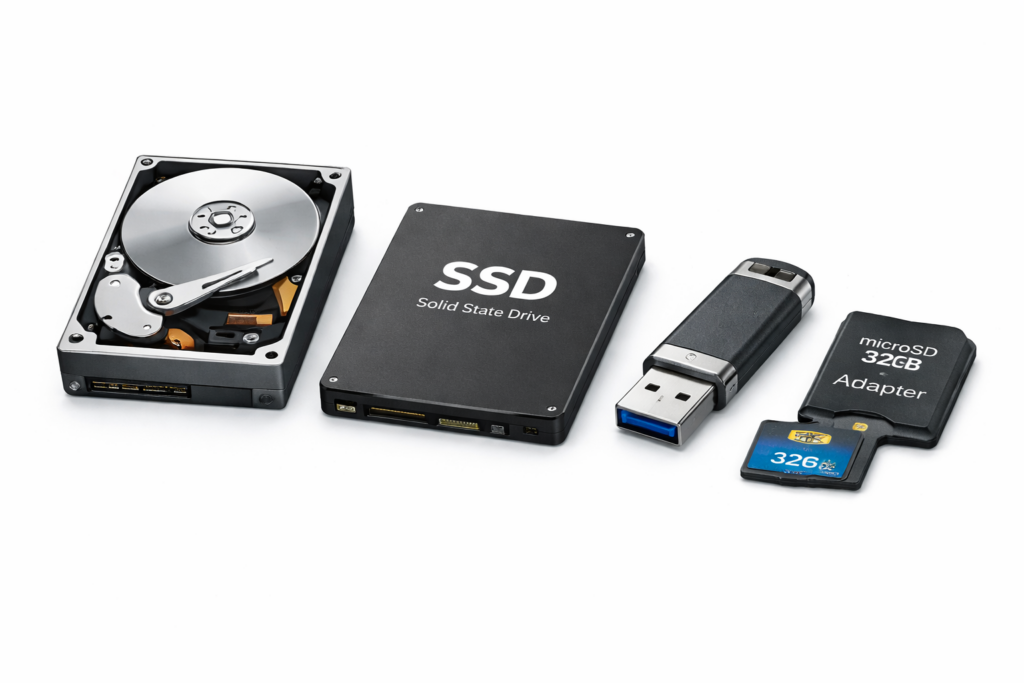
A storage device is a hardware component that can store data, such as:
- Hard Disk (HDD)
- Solid State Drive (SSD)
- USB drive
- External drives and other removable media
2) Partition
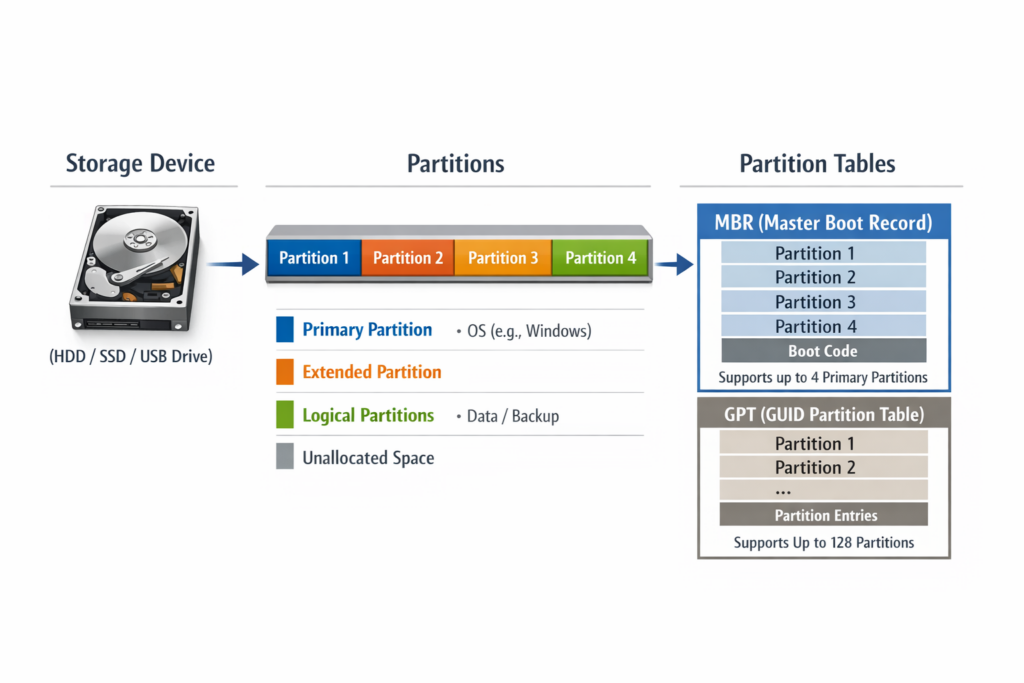
A partition refers to a part of a storage device. You can split a single storage device into multiple smaller sections called partitions.
Common Types of Partitions:
a) Primary Partition: A partition that holds an operating system and can be marked as “Active” for booting. A bootable, directly addressable partition type. A primary partition does not have to be a boot partition (it can be for data). A disk can have up to 4 primary partitions.
b} Boot Partition: A boot partition is always a primary partition, or in some configurations, a logical partition within an extended partition, though that is less common.
- Contains the operating system and boot files
- Helps the system to start (boot)
c} Extended Partition: A special partition type that acts as a container to bypass the 4-partition limit, allowing for more storage divisions. You can only have one extended partition per disk.
d} Logical Partition: Created inside an extended partition. They are used to organize data but cannot be directly used to boot an operating system.
e) Swap Partition: Used for virtual memory, acting as an extension of physical RAM.
Used for memory management
Functions of Swap Partition:
- Acts as secondary (virtual) memory
- Helps when RAM is full
- Improves system efficiency
- Reduces memory overload
- Helps prevent system crashes due to low RAM
- Helps reduce fragmentation in physical memory
Note: Swap is slower than RAM but useful for system stability.
f} EFI System Partition (ESP): Required for booting on systems using UEFI firmware.
3) Volumes
A volume is a mounted partition. After mounting a partition:
- It becomes accessible to the user
- It is recognized by the file system
- It can store files and data
You can think of a volume as:
A labeled and accessible area of a partitioned storage device.
Partition Tables
What is Partition Tables?
A partition table is a data structure, stored on a physical disk, that defines how the disk is divided into logical sections (partitions), including their size, location, and file system type. It tells the operating system where each partition starts and ends, allowing the disk to be managed as separate, independent storage drives.
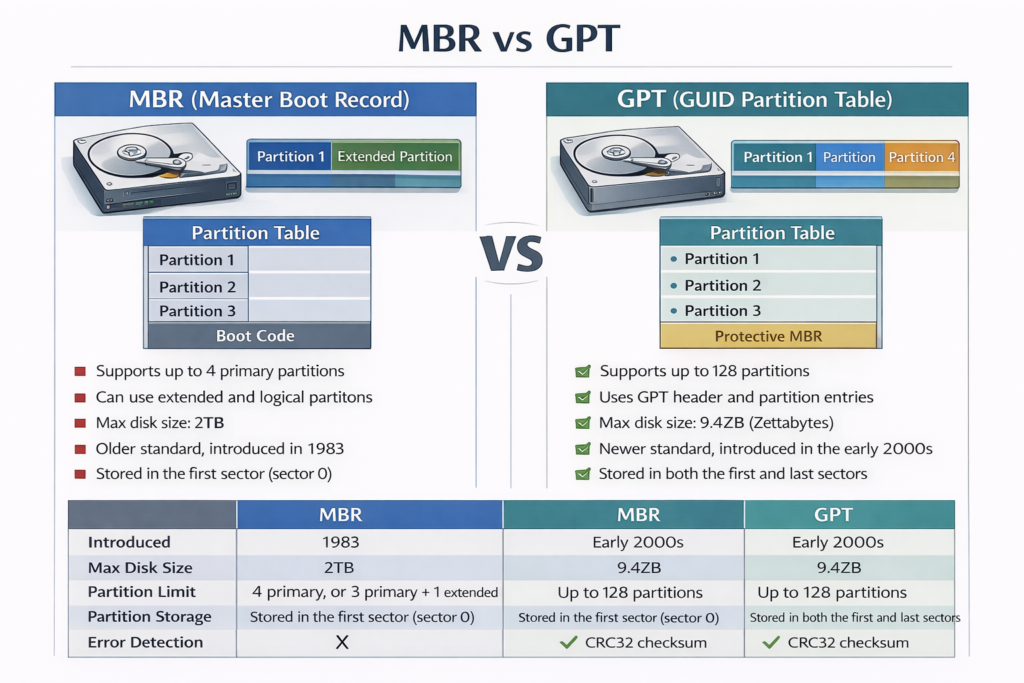
| MBR (Master Boot Record) | GPT (GUID Partition Table) |
| An older, industry-standard format with 32-bit address scheme that supporting up to four primary partitions and disks up to 2 TB. However, we can use an extended partition. That is further divided into logical partitions to overcome this limitation. MBR also contains boot loader. It is written in the initial sector of the drive. | A modern standard associated with UEFI, supporting up to 128 partitions and much larger disk sizes (exceeding 9.44 ZB). Each partition is assigned a unique ID when the partition is created. Most of the modern computers came with GPT disk. GPT even support the MBR features for backward compatibility. |
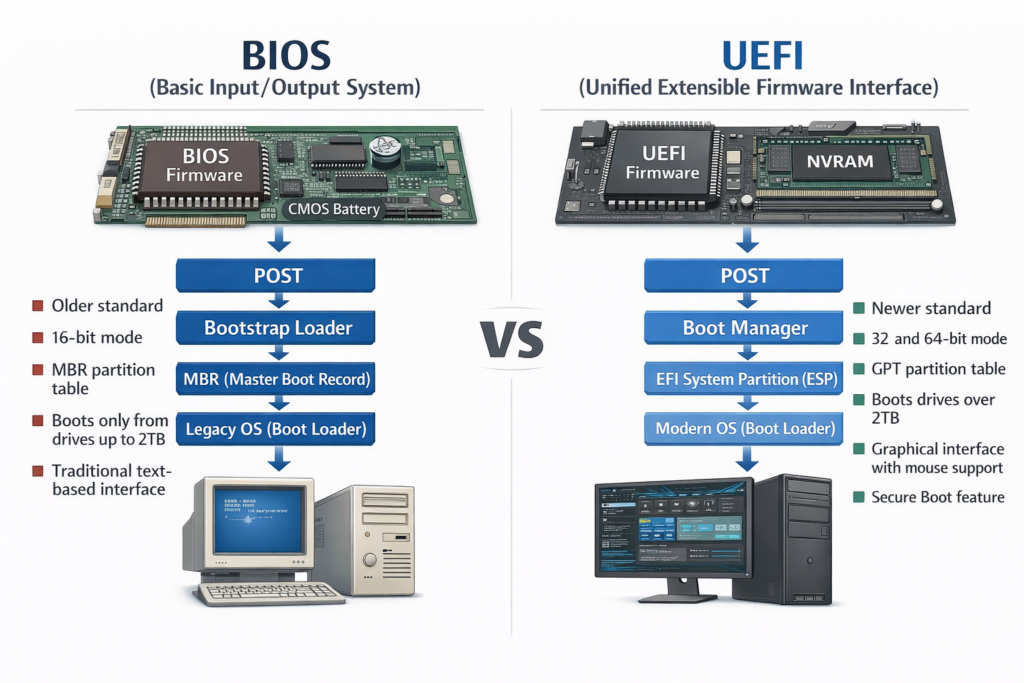
| BIOS (Basic Input Output System) | UEFI (Unified Extensible Firmware Interface) |
| BIOS runs in 16-bit mode and initialize the hardware and load the boot loader from MBR. Gradually BIOS is typically limited to a keyboard-only text interface. BIOS is being replaced by UEFI. (Unified Extensible Firmware Interface). | UEFI can operate in 32/64-bit mode and generally provide faster boot-up time compared to BIOS. Instead of loading a boot loader from MBR, UEFI uses .efi images from EFI System Partition. With UEFI & GPT we can have large disk support. |
Note: GPT even support the MBR feature for backward compatibility. Some linux system use BIOS boot mode with GPT disk.
Partition Management Tools
Text based Utilities (CLI)
1. Fdisk – Fdisk is a popular and powerful command line tool used for creating and managing disk partition tables. It supports multiple partition table formats, including MBR (Master Boot Record) and GPT (GUID Partition Table). It provides a user-friendly text-based and menu driven interface to display, create, resize, delete, modify, copy and move partition on disks.
GPT → GUID Partition Table is a partition scheme that is a part of the Unified Extensible Firmware Interface specification. It uses globally unique identifiers (GUIDs) or UUIDs in the Linux world, to define partitions and partition types. It is designed to succeed the Master Boot Record partitioning scheme.
For Linux, it does not matter to which type of partition (logical or primary) to get with GPT it may be slightly more handy to be more partitions if needed, because they will be all primary. There is no performance difference at all.