A mail server is a computer system or software program that sends, receives, routes, and stores email messages across the internet. An email server works like a digital post office by using specific protocols to route, send, and receive messages between different users.
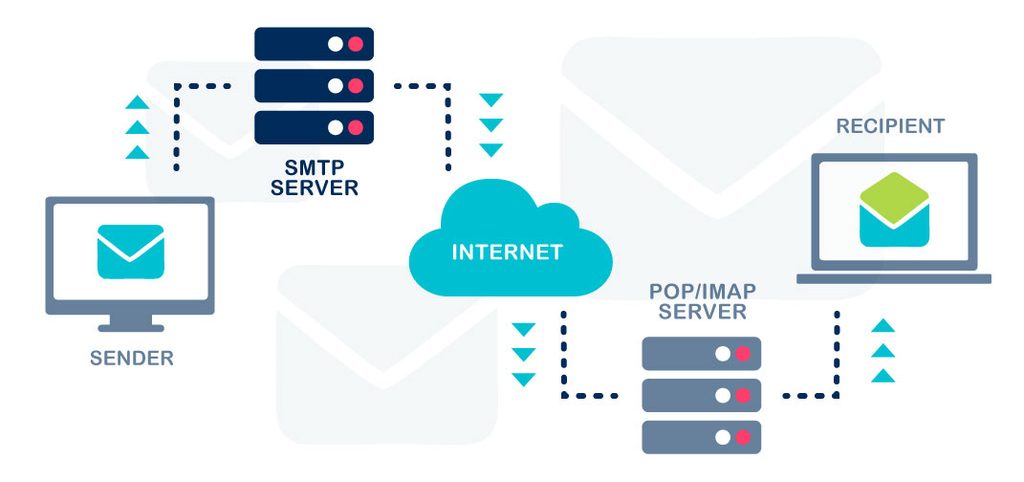
How Mail Server Work
They use two main types of servers to move a message from a sender to a receiver:
- Outgoing Mail Server (SMTP): Your email client uses the Simple Mail Transfer Protocol (SMTP) to send outgoing messages to the server, which then routes them to the recipient’s server.
- Incoming Mail Server (IMAP / POP3): The recipient’s server stores incoming mail. Protocols like Internet Message Access Protocol (IMAP) keep messages synced across multiple devices, while Post Office Protocol (POP3) downloads them to a single device.
E-Mail Delivery Process
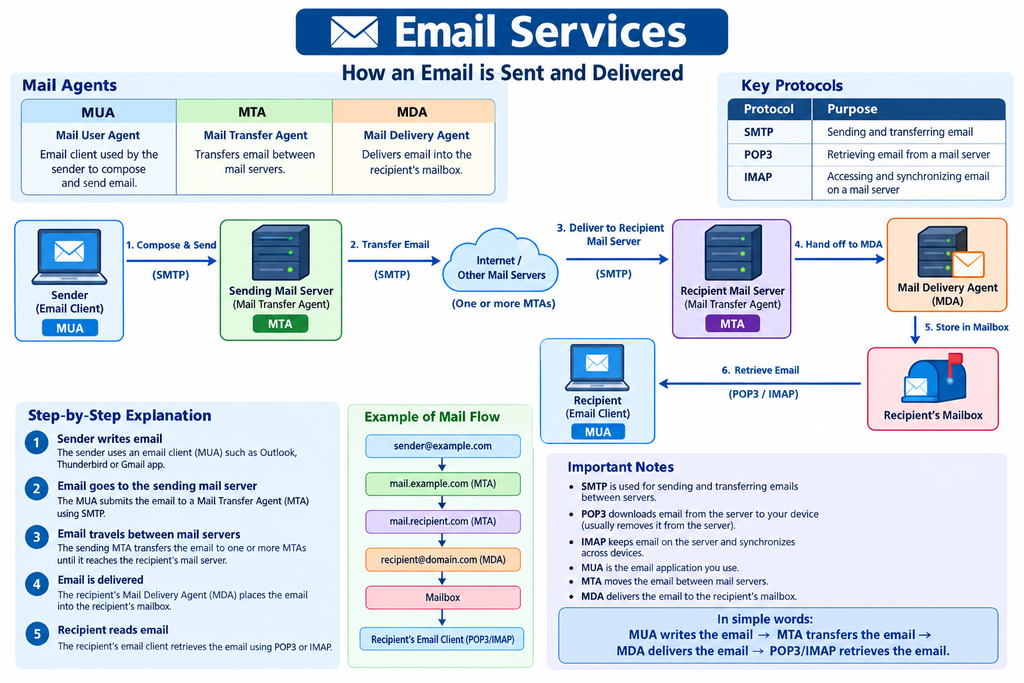
Step 1: Writing and Sending Mails (Via Outgoing Mail Server)
- Composing: You write a message in your email client (Mail User Agent (MUA) i.e. Outlook or Gmail) and click send.
- Outgoing Transfer (SMTP): Your client connects to an outgoing server (Mail Transfer Agent (MTA)) using the Simple Mail Transfer Protocol (SMTP).
- Routing and DNS Lookup: The SMTP server checks the Domain Name System (DNS) and mail exchange (MX) records to find the recipient server’s IP address.
- Transfer: The server sends the message across the internet to the recipient’s mail server via SMTP.
Step 2: Receiving and Storing Mails (Via Incoming Mail Server)
- Delivery: The recipient’s incoming server (Mail Delivery Agent (MDA)) accepts the message and places it into a temporary storage area or delivery queue.
- Retrieval: When the recipient opens their email app, the app connects to the incoming server (MDA) via IMAP / POP3 protocols to download or view the new mail.
Receiving Protocols
- IMAP (Internet Message Access Protocol): Keeps messages stored on the server so you can sync and view them across multiple devices.
- POP3 (Post Office Protocol 3): Downloads the messages directly to a single device and generally deletes them from the server.
Common Types
- Commercial/Managed: Services like Microsoft Exchange, Google Workspace, and Microsoft 365 manage server infrastructure for businesses.
- Self-Hosted / Open Source: Software options include Postfix, Dovecot, and packages like Mail-in-a-Box or Mailcow for dedicated servers.
Mail Server Setup
Setting up a basic mail server on Ubuntu 22.04 involves installing Postfix for SMTP routing and configuring essential DNS and system settings.
What is Postfix?
Postfix is the default Mail Transfer Agent (MTA) for Ubuntu, used to route, send, and receive emails on a Linux system. It works using the Simple Mail Transfer Protocol (SMTP).
Prerequisites & DNS Setup
- Hostname: Set a Fully Qualified Domain Name (FQDN) for your server (
sudo hostnamectl set-hostname mail.yourdomain.com). - DNS Records: Create an A record pointing your mail subdomain to your server’s IP, an MX record pointing to your mail hostname, and a PTR (Reverse DNS) record with your VPS provider.
- Ports: Ensure firewall and cloud provider rules allow incoming and outgoing traffic on standard ports like 25 (SMTP), 587 (Submission), and 993 (IMAPS).
What is Mailutils?
Mailutils provides the CLI commands to test and send emails.
To install and configure Postfix alongside mailutils on Ubuntu 22.04, follow this complete step-by-step guide. Bundling these allows Postfix to serve as the mail transfer agent (MTA) while mailutils provides the CLI commands to test and send emails.
Step 1: Update the System Packages
Refresh your local package index to ensure you pull the latest software versions:
bash
sudo apt updateStep 2: Install Postfix
Install the Postfix Mail Transfer Agent (MTA):
bash
sudo apt install postfixSelect Internet Site during the interactive prompt and enter your FQDN when asked for the mail name.
Configure Postfix During Installation
During the installation process, an interactive prompt will appear in your terminal. Navigate using the TAB and ENTER keys to provide the following details:
- General type of mail configuration: Select Internet Site. (This allows the server to send and receive email directly using SMTP).
- System mail name: Enter your server’s fully qualified domain name (e.g.,
example.comormail.example.com). If you do not have a domain, you can use your server’s hostname.
Note: If you ever make a mistake or need to change these settings later, you can reopen this prompt by running:
bash
sudo dpkg-reconfigure postfixStep 3: Configure Core Postfix Settings
Open the main configuration file:
sudo nano /etc/postfix/main.cf
Verify or update the core parameters to match your domain:
text
myhostname = mail.yourdomain.com
mydestination = $myhostname, yourdomain.com, localhost.localdomain, localhost
inet_interfaces = all
Apply the mailbox format configuration if using local maildirs:
sudo postconf -e ‘home_mailbox = Maildir/’
Restart the service to apply changes:
sudo systemctl restart postfix
Step 4: Verify the Service Status
Ensure that the Postfix service is actively running on your system:
bash
sudo systemctl status postfixNote: If it is not running, start and enable it to run on boot:
bash
sudo systemctl start postfix
sudo systemctl enable postfix
Step 5: Test Local Mail Delivery
Install a mail client utility like s-nail or mailutils to test local sending:
To install mailutils on Ubuntu 22.04, you need to update your system package repositories and use the apt package manager.
sudo apt update
sudo apt install mailutils -y
After installation test local sending
bash
echo "Test body" | mail -s "Test Subject" user@yourdomain.comTroubleshooting Tips 🛠️
- Check Mail Logs: If the email does not arrive, inspect your local system logs to see what went wrong:
bash
sudo tail -f /var/log/mail.log- Port 25 Restrictions: Many cloud infrastructure providers (like DigitalOcean, AWS, or Linode) block outbound traffic on Port 25 by default to combat spam. If your emails are timing out or not sending, you may need to request the provider unblock the port, or configure Postfix to use an SMTP Relay service (like SendGrid, Mailgun, or Brevo).