What is SSH?
Secure Shell (SSH) is a cryptographic network protocol used for a secure connection between a client and a server.
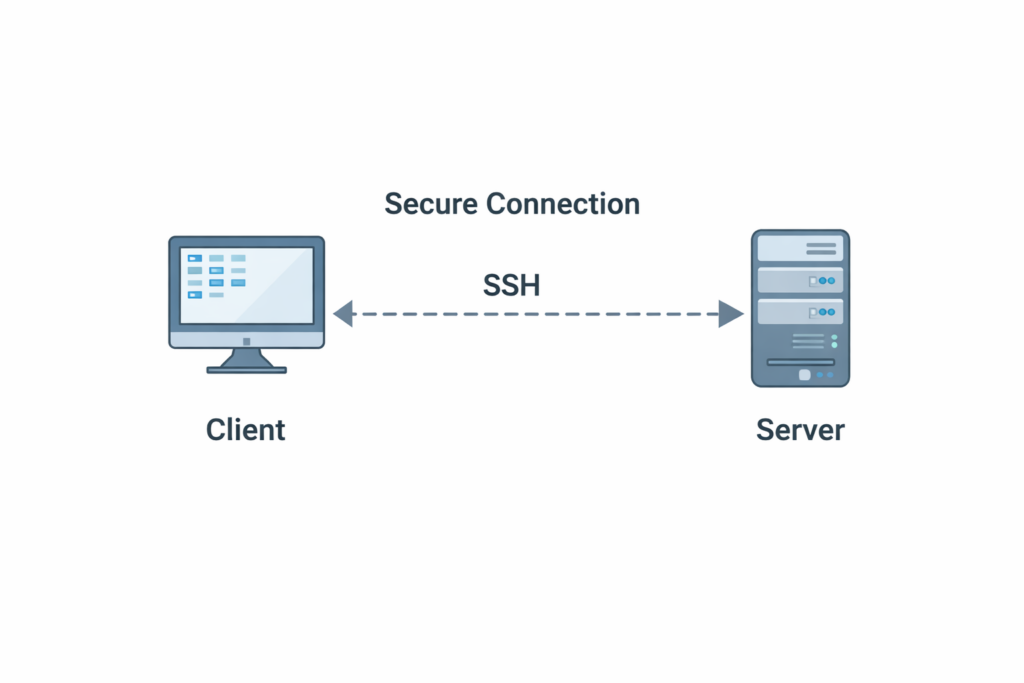
- A Client connects securely to a Server using SSH.
- By default, SSH is not enabled on both Server and Desktop.
Install and Enable SSH Server
Install OpenSSH Server on Ubuntu
Step A: Update Package List
$ sudo apt-get update(Updates the available package lists)

Step B: Install OpenSSH Server
$ sudo apt-get install openssh-server(To install OpenSSH server)

Step C: Verify Installation
To check whether OpenSSH is installed:
$ sudo apt list --installed | grep openssh(This shows installed packages related to OpenSSH.)

Install OpenSSH Client on Ubuntu (If needed)
If you also want to install the SSH client:
$ sudo apt-get install openssh-clientSSH Service Management
After SSH Installation on Ubuntu
Once SSH is installed on Ubuntu, the SSH service will start automatically.
To verify SSH installation & service:
Run:
$ sudo systemctl status ssh→ After checking, press q to exit.
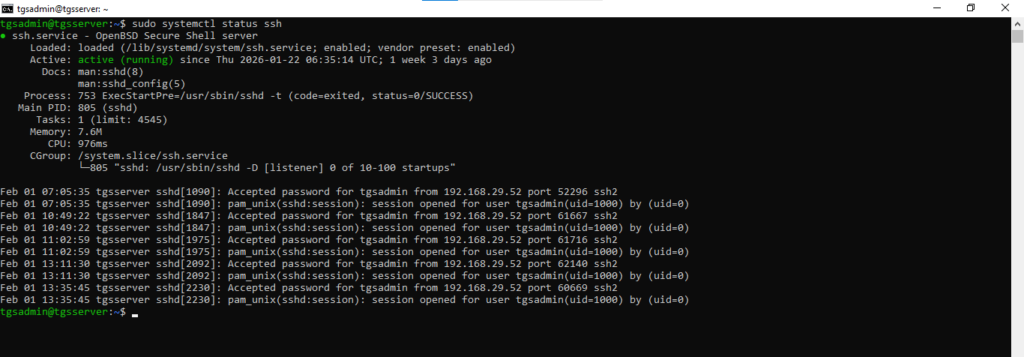
If SSH Service is NOT started
Run the following commands:
To Start SSH service
$ sudo systemctl start ssh.service
To restart SSH service
$ sudo systemctl restart sshTo enable SSH service on boot
$ sudo systemctl enable ssh.serviceTo disable SSH service on boot
$ sudo systemctl disable ssh
To stop SSH service
$ sudo systemctl stop sshConnect to Server via SSH
Through PuTTY on Windows Client
Now you can connect through PuTTY by using Windows 10:
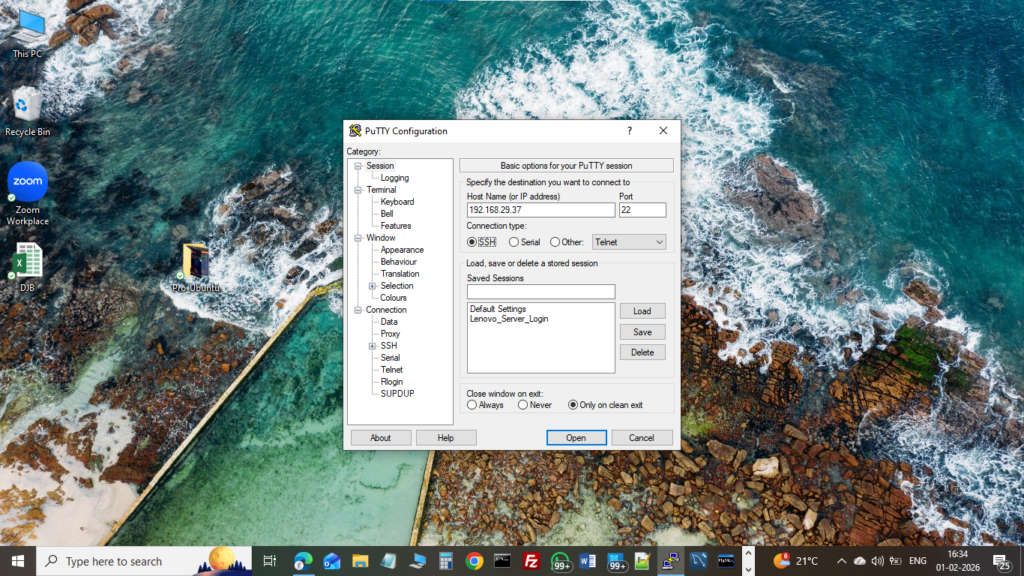
Steps in PuTTY:
- Open PuTTY
- Select Session Tab on left side column
- Configure:
- On Hostname / IP Field: Enter ubuntu server IP
- On Port Field Port 22 (default SSH port — change if you use a different one)
Then click Open to establish the SSH connection.
Through CMD on Windows Client
Steps in CMD:
- Open Command Prompt (CMD) in Windows and run:
C:\> ssh username@192.168.1.11- You will be asked for the password of the username on the server.
- By default, SSH uses Port 22.
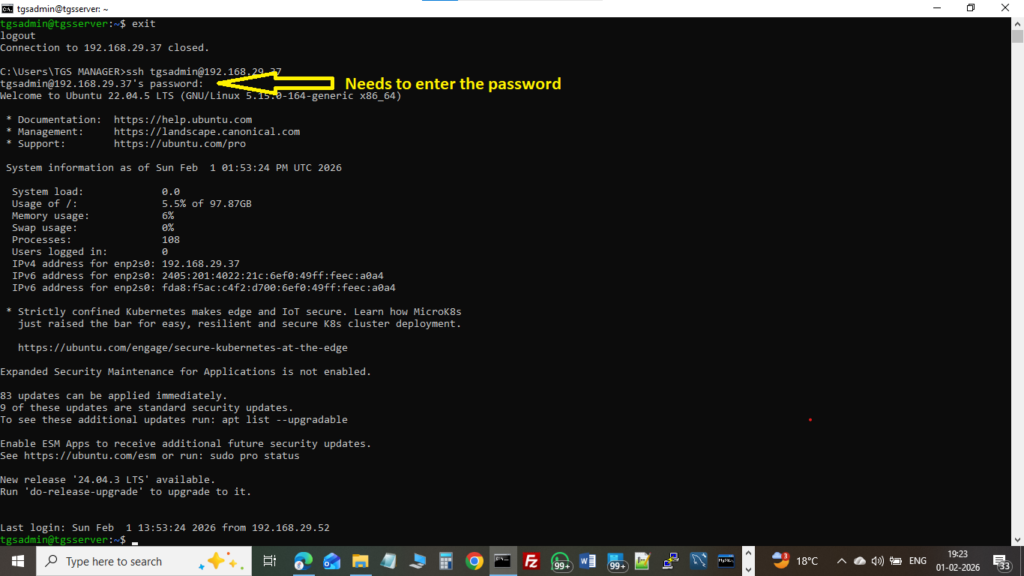
Alternative format:
C:\> ssh -p 22 username@192.168.1.11(Use this if the port is specified explicitly.)