What is Samba File Server?
- Enables you to share files across different OS over a network.
- Also enables you to use print & file services for various Microsoft Windows clients and can integrate with a MS Server domain either a Domain Controller or as a Domain Member.
- Ubuntu comes with Samba.
- Ubuntu 18.04 LTS supports file sharing with MS Windows 10 or other versions.
Installing Samba
Run the following commands in Terminal:
sudo apt update→ To update package information.

sudo apt install samba→ To install Samba.
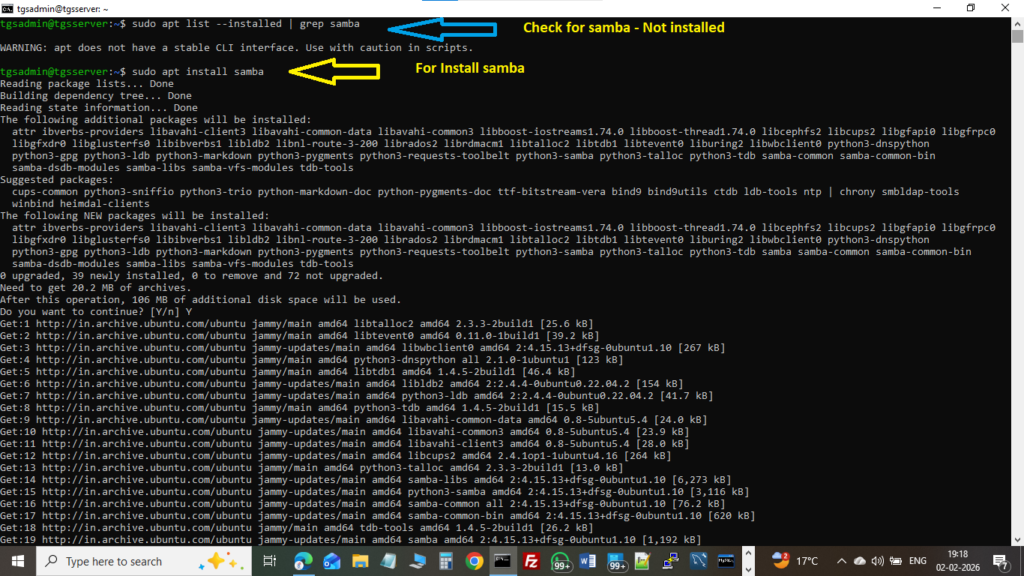

whereis samba.To check installation location / status of Samba
→ Example path: /usr/sbin/samba

Setting Up Samba
Create a shared folder
Run:
mkdir /home/<username>/sambashare→ Create a folder for sharing.

Configuration File for Samba
Edit Samba configuration file:
/etc/samba/smb.conf→ This is the main configuration file for Samba.
Configuring Shared Directory
1. Edit Samba Configuration File
To add a new shared directory, edit the Samba config file by running:
sudo nano /etc/samba/smb.conf→ This opens the file in the nano text editor.
2. Add Configuration at Bottom
At the bottom of the file, add the following lines:
[sharedrive]
comment = Samba on Ubuntu
path = /home/tgsadmin/sambashare
read only = no
browsable = yes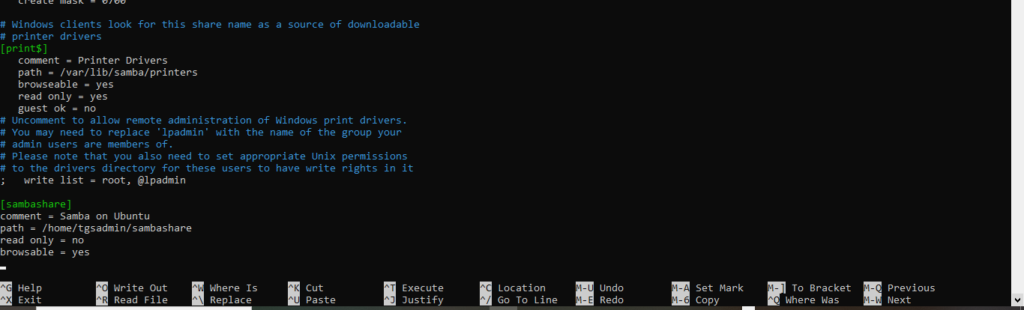
Explanation of fields:
- [sharedrive] → Name of the shared folder
- comment → Description of the share
- path → Actual directory location on Ubuntu
- read only = no → Allows users to write/delete files
- browsable = yes → Makes folder visible on network
After adding this:
- Press Ctrl + O → to save
- Press Ctrl + X → to exit nano editor
3. Restart Samba Service
Now that we have configured the new share, restart Samba so it takes effect:
sudo service smbd restart
4. Allow Samba Through Firewall
To allow Samba traffic through Ubuntu firewall, run:
sudo ufw allow samba
5. Setting Up Samba User Account
Since Samba does not use the system user password, we need to create a Samba user.
Run:
sudo smbpasswd -a <username>Example:
sudo smbpasswd -a tgsadminYou will be prompted to:
- Enter new Samba password
- Confirm password

Note: This password is used when accessing the shared folder from Windows or other systems.
Connecting to Samba Share
A. On Ubuntu
- Open Default File Manager → Click on Connect to Server.
- In the server address field, type:
smb://<IP-address>/sharedriveExample:
smb://192.168.29.37/sambashareThen click Connect.
B. On Windows
- Open File Manager (File Explorer) or Window + R button to open Run Box
- In the address bar, type:
\\IP-address\sharedrive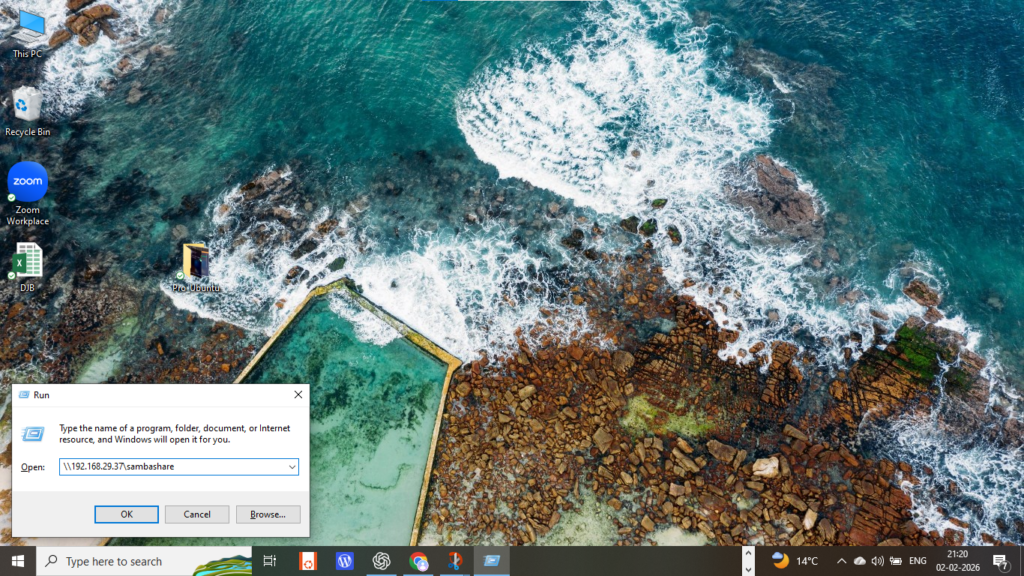
Example:
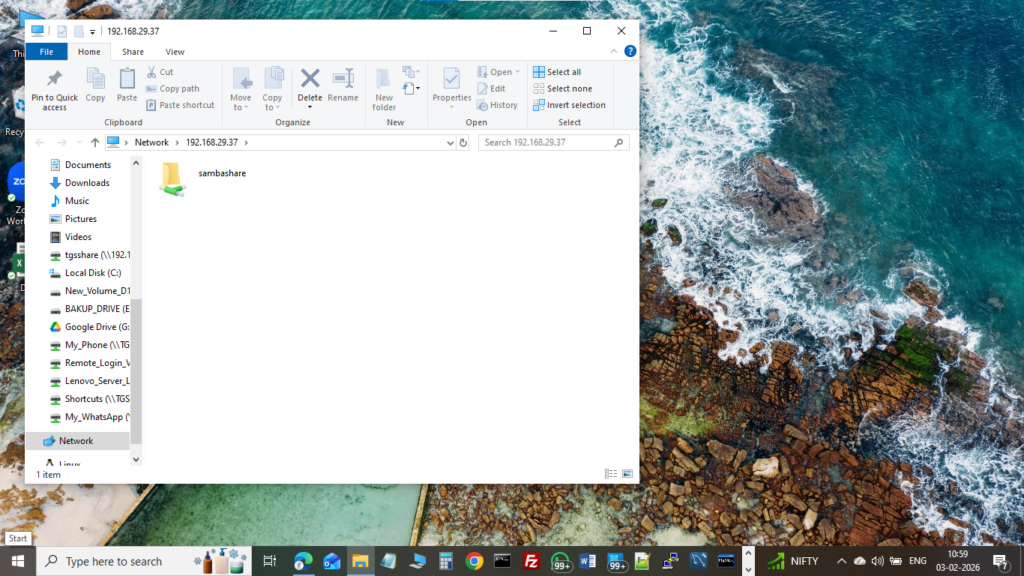
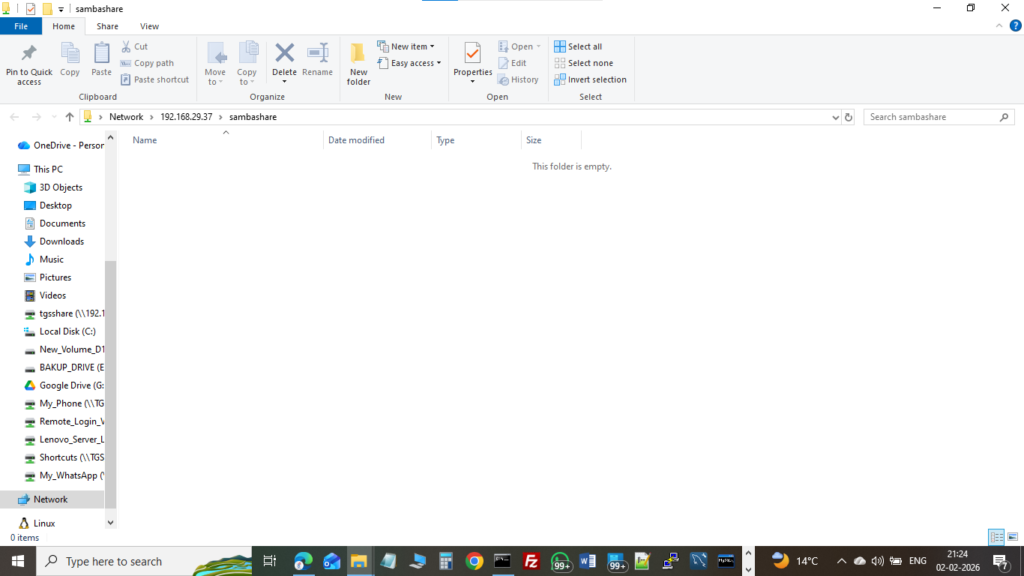
\\192.168.29.37\sambasharePress Enter → This will prompt for user & password to open the shared folder from the Samba server.
Enter Correct User & Password (Created at Step 5)
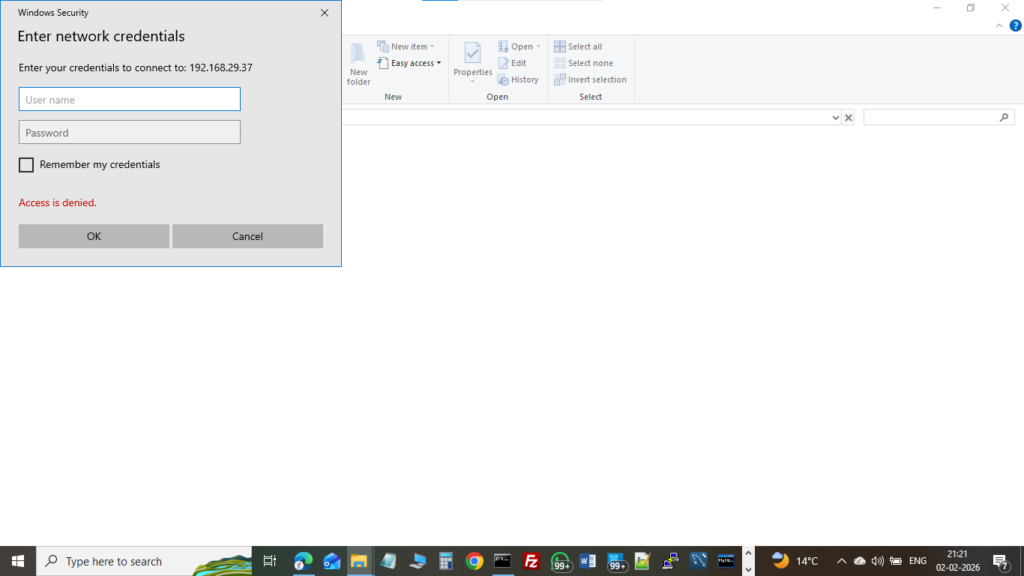
After Successful Authentication Share Directory (sambashare) will be accessible
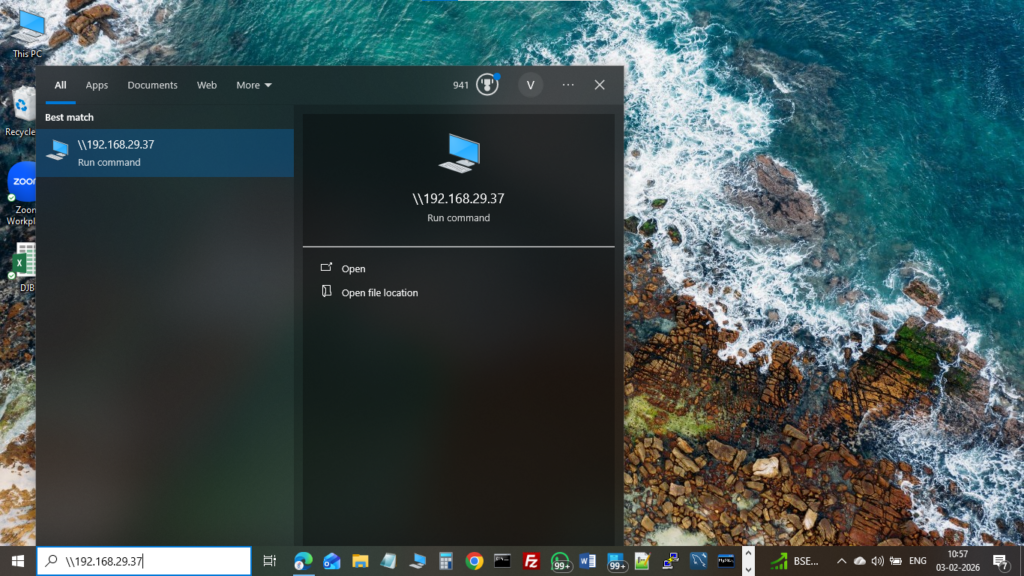
C. Alternative Method (Search Option)
- Click on Start Menu.
- Open Search Bar.
- Type the server IP address in this format:
\\IP-addressThen press Enter to browse available shared folders.